Introduction
m5-grayline is a firmware for M5Stack Basic that shows a world map with day, night, twilight and the grayline (the sunrise / sunset terminator). The time is synchronized over Wi-Fi with NTP, and the map is redrawn every minute.
Screens
Section titled “Screens”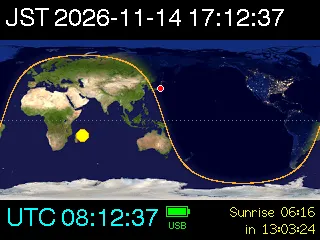
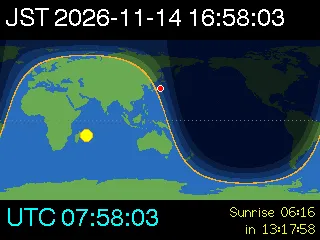
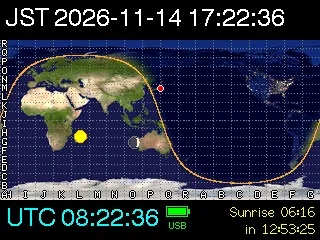
Button B switches between two map styles. The first image below shows the twilight zones style, and the second shows the Maidenhead grid and Moon overlay.
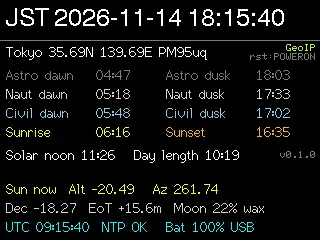
Button C switches to the info screen with today’s sunrise, sunset and more for your location.
Features
Section titled “Features”- World map in equirectangular projection, centered on your longitude.
- Two map styles:
- Photo style: NASA Blue Marble by day and NASA Earth at Night (city lights) by night, blended smoothly between sun altitudes of -12° and +2°.
- Twilight zones: day, civil twilight (-6°), nautical twilight (-12°), astronomical twilight (-18°) and night in steps of brightness.
- Grayline, subsolar point and your location. Optional Maidenhead grid and Moon (sublunar point with its phase).
- Local time, UTC, and a countdown to your next sunrise or sunset. Polar night and midnight sun are handled.
- Info screen: today’s twilight, sunrise, sunset and solar noon times, day length, current sun altitude and azimuth, declination, equation of time, Moon illumination and grid locator.
- Your location comes from the latitude / longitude in
config.jsonon the microSD card, or an estimate by GeoIP (ipinfo.io), or Tokyo, in this order. - The screen is dimmed at night and on battery. Wi-Fi is on only while synchronizing the time.
What you need
Section titled “What you need”- M5Stack Basic V2.6 (other models are not tested)
- A microSD card (for the settings file
config.json) - A 2.4 GHz Wi-Fi network (for the time)
- A computer and a USB Type-C cable for installing the firmware
Next steps
Section titled “Next steps”- Install the firmware: see Installing the firmware.
- Set up Wi-Fi and your location: see Configuration (config.json).
- Learn the screens and buttons: see Screens and buttons.